

Does Webflow have built-in analytics?
Webflow users often ask “Does Webflow show analytics?” and the answer is “Yes.” Webflow has built-in analytics through Webflow Analyze. Webflow Analyze is a paid integrated add-on product that allows for Webflow analytics.
You can use Webflow Analyze to see your website’s performance metrics right within the Webflow platform. This lets you track standard metrics, such as unique visitors, traffic sources, and bounce rates.
Outside of standard metrics, Webflow Analyze also lets you view scroll depth maps and visual click maps overlaid onto your live website. This can give you a much greater insight into your website’s performance.
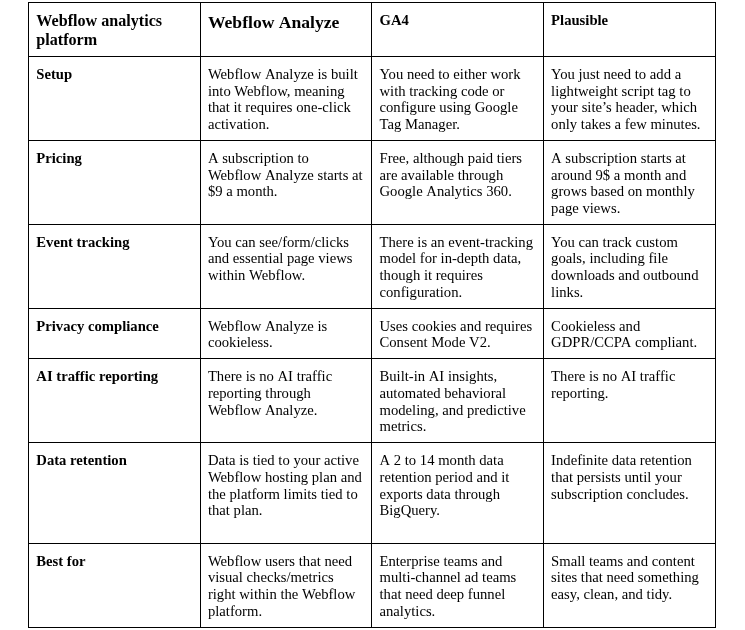
Here is a brief comparison table for Webflow Analyze vs GA4 vs Plausible:
What each tool is and who it is built for
Webflow Analyze
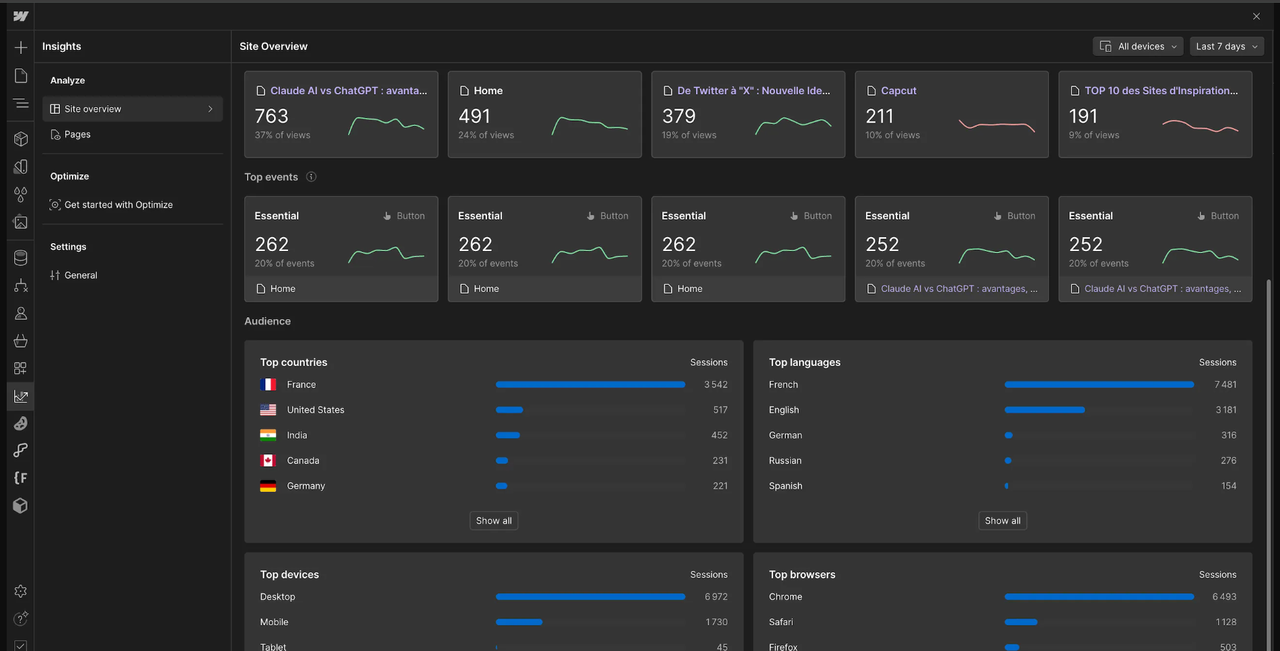
Webflow Analyze is built directly into the Webflow platform. It is built for Webflow site owners, designers, and developers that want to track custom click events, page views, and user behavior. Unlike other platforms that facilitate Webflow analytics, Webflow Analyze lets you access those metrics without leaving the Webflow CMS or writing a single line of code.
GA4
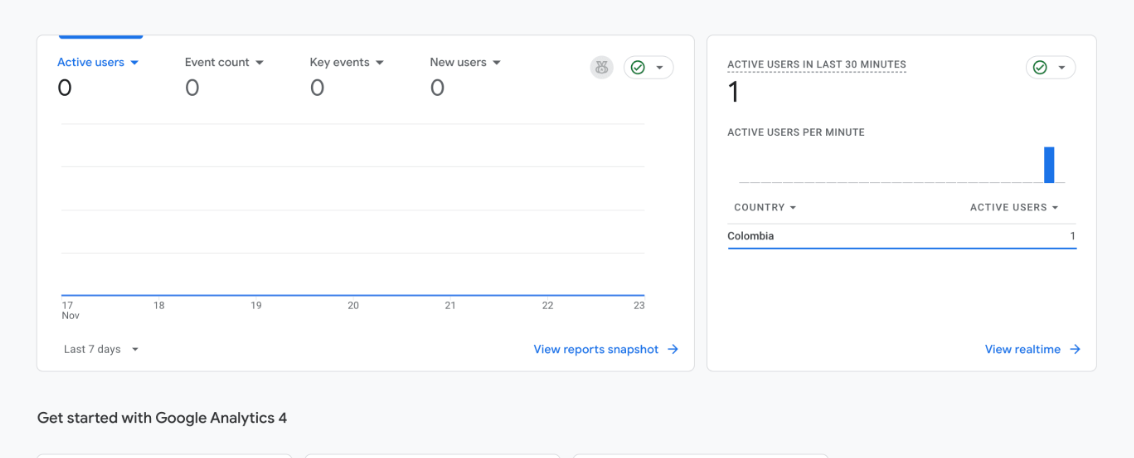
Google Analytics 4 (GA4) is an event-based analytics platform that lets you track user journeys across the entirety of your website. It is built for data analysts, enterprise teams, and professional marketers that require customizable reporting, integration with Google’s ecosystem, and cross-platform tracking.
Plausible
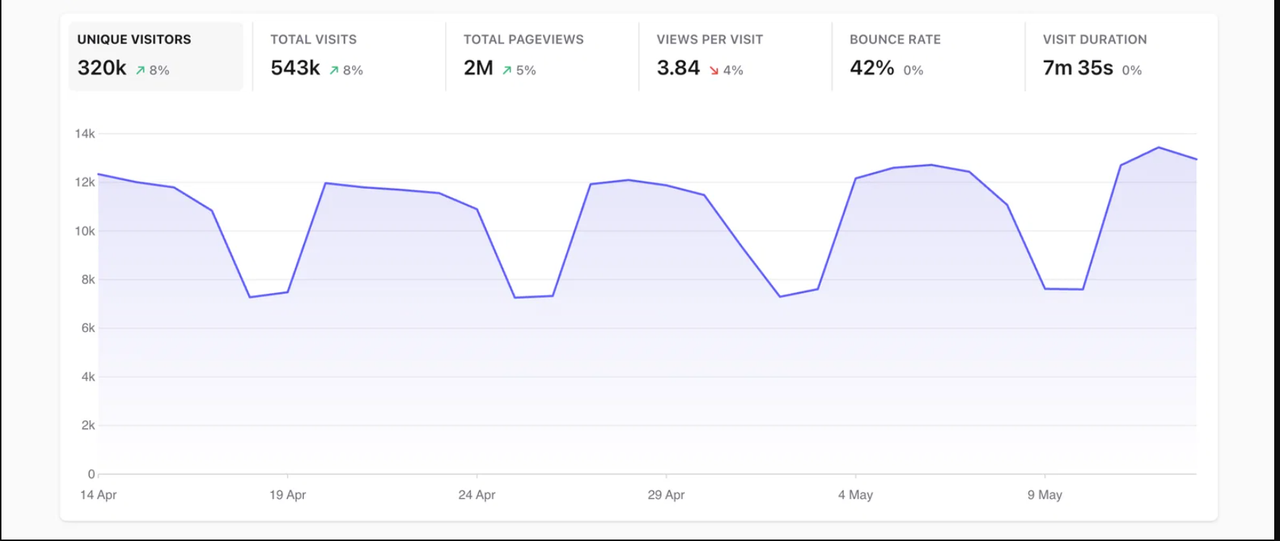
Plausible is a lightweight, open-source web analytics platform that is focused on speed and privacy. It is built for website owners, content teams, and businesses conscious of privacy. You can use Plausible to track essential traffic metrics without the use of cookies.
Setup on a Webflow site
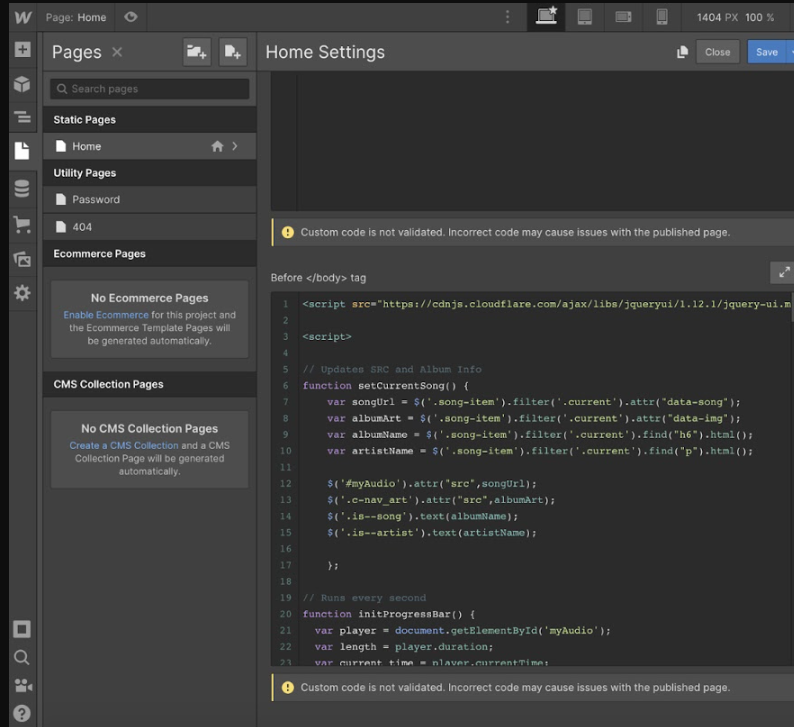
Webflow Analyze, GA4, and Plausible come with their own setup processes. Each one of these processes is a little different and, depending on your technical familiarity, some of these processes may be challenging.
Here is how to set up Webflow Analyze:
- Purchase the “Webflow Analyze” add-on.
- Enter the “Insights” tab, click “Settings,” and, then, click “Tracking.”
- Click on the “Start tracking visitor behavior data” toggle to turn it “On.”
- Select your tracking default status: “Always track,” “Opt-out,” and “Don’t track” are your options.
- Publish your Webflow website.
Doing the above will give you access to Webflow Analyze’s Webflow analytics.
You can set up Webflow Google Analytics through native integration or Google Tag Manager. Here is how to set up GA4 through native integration:
- Copy your unique “Measurement ID” from the Google Analytics Admin panel.
- Open Webflow and go into “Site Settings,” then click on “Apps & Integrations.”
- Scroll down to the “Google tag/Google Analytics” section and paste the Measurement ID.
- Click the “Save” button.
- Publish your Webflow website.
Here is how to set up GA4 using Google Tag Manager:
- Copy the “<head>” and “<body>” Google Tag Manager container snippets.
- Open Webflow and go to “Site Settings,” then click on “Custom Code.”
- Paste the “<head>” snippet into the “Head code” container.
- Paste the “<body>” snippet into the “Footer code” container.
- Set up your GA4 configuration tag inside of the Google Tag Manager workspace dashboard.
- Publish your Webflow website and the Google Tag Manager container.
Here is how to set up Plausible:
- Open your Plausible dashboard and copy the JavaScript snippet provided by this dashboard.
- Open Webflow, go to “Site Settings,” and click on “Custom Code.”
- Paste the JavaScript snippet into the “Head Code” block.
- Save your changes and then click the “Publish” button.
Before we conclude this section, here are consent implications for each of these analytics tools:
- Webflow Analyze’s consent implications depend on the tracking default status. By default, you are opted-in to “Always track.” But, you can change this, so that it does not track.
- GA4 requires strict consent. This is because GA4 utilizes tracking cookies while processing personal identifiers. Relying on Google Consent Mode v2, by using an external banner system, can help you comply with the EU’s regulations.
- Plausible does not require a consent banner. Unlike other web analytics platforms, Plausible is a privacy first platform that does not rely on cookies.
Pricing and traffic tiers
As of a June 25th of 2025 update from Webflow’s updates page, here are Webflow Analyze’s pricing/traffic tiers:
- $9 a month billed annually/$12 a month billed monthly for up to 2,000 sessions.
- $19 a month billed annually/$25 a month billed monthly for up to 5,000 sessions.
Higher tiers are available. But, when it comes to Webflow analytics pricing, those tiers scale based on custom requirements. Determining the price will require contacting sales. Based on user data, a 25,000 session site may pay anywhere from $29 to $49 per month. Webflow analytics, through Webflow Analyze, is not free.
As of September 21st of 2026, and based on Plausible’s pricing page, here are Plausible’s pricing/traffic tiers:
- A site with up to 10,000 monthly pageviews will pay $9 a month using the “Starter” plan.
- A site with up to 10,000 monthly pageviews will pay $14 a month using the “Growth” plan.
- A site with up to 10,000 monthly pageviews will pay $19 a month using the “Business” plan.
Each one of these plans will scale based on pageviews. The scale goes from 10,000 monthly page views to 100,000 monthly page views. For example, a site with up to 100,000 monthly pageviews and 25,000+ sessions may:
- Cost $19 a month on the “Starter” plan.
- Cost $29 a month on the “Growth” plan.
- Cost $39 a month on the “Business” plan.
If your website receives more than 10 million monthly pageviews, Plausible offers custom plans that can be tailored to those needs.
Unlike Webflow Analyze and Plausible, GA4 relies on a slightly different pricing scale:
- GA4 Free is a $0 web analytics platform with no overall session caps. But, it does rely on certain limitations, such as a 14-month data retention period and a daily export cap of 1 million events.
- GA4 360 is an enterprise web analytics platform that, as per user data, often costs anywhere from $35,000 to $50,000 every single year. Data retention lasts 50 months and billions of daily limits can be exported.
The above is true, as of September 21st of 2026. For a site with 25,000 sessions, GA4 Free would, in most cases, be more than sufficient. Using GA4 Free can make Webflow Analytics free.
Event and conversion tracking limits
Webflow Analyze, GA4, and Plausible each come with out-of-the-box Webflow tracking features. This is what Webflow Analyze can track, out of the box, on Webflow:
- Page views.
- Unique visitors.
- Sessions.
- Bounce rate.
- Average time on page.
- Scroll depth.
- Visual clickmaps/heatmaps inside Webflow Designer.
- Form submissions.
- Basic user journeys.
Outside of those Webflow analytics, you generally need external API extraction for advanced multi-channel attribution, deep funnel sequencing, and custom event parameters.
This is what GA4 can track, out of the box, on Webflow:
- Basic page views.
- Scrolling - when a user reaches the 90% mark of the page.
- Outbound clicks.
Form tracking requires configuration and so does conversion event tracking. You generally need Google Tag Manager to monitor form success, push custom events into your website’s data layer, and redirect users to dedicated pages. Alternatively, you can use custom JavaScript code to do this.
Here is what Plausible can track, out of the box, on Webflow:
- Page views.
- Sessions.
- Bounce rate.
- Visit duration.
- Entry pages.
- Outbound link clicks.
Custom event tracking requires adding a specific CSS class name to the Webflow element or adding manual JavaScript code using Webflow’s custom code settings.
Privacy, consent and EU traffic
Webflow Analyze is cookieless by default and does not require a cookie consent banner for standard EU traffic. On top of that, Webflow Analyze integrates with consent tools via various APIs.
Plausible is cookie-free and built around security. You don’t need a cookie banner as Plausible complies with GDPR, CCPA, and PECR. As for data residency, all data is managed on servers operated in the EU.
GA4 relies on cookie-based tracking that assigns unique identifiers. This means your website will require explicit user consent, under EU law, before activating GA4’s tracking scripts. Data is stored primarily within US servers.
Here are a few more things to consider when it comes to GA4’s tracking:
- If a user declines the cookie banner, GA4’s tracking will not work for that user.
- You can set up Google Consent Mode v2 to estimate the missing traffic data.
Webflow Analyze and Plausible are cookieless. This makes it easier for you to receive accurate, and consistent, data metrics.
AI and LLM traffic reporting
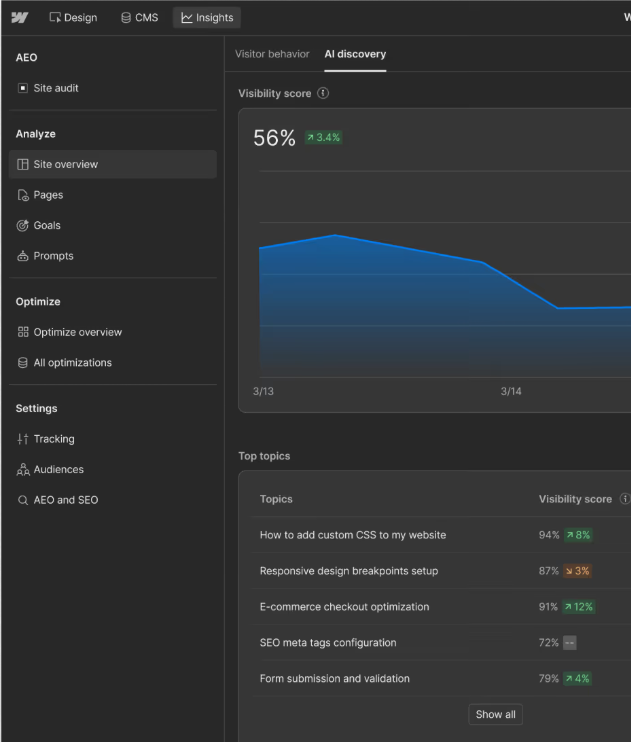
Webflow Analyze’s AI traffic reporting is its most distinctive Webflow analytics feature and this is what it shows:
- AI-referred human visitors: You can use Webflow Analyze’s AI traffic reporting to see human visitors that were referred to your site from AI tools like ChatGPT, Gemini, and Claude. These visits are encompassed within a single “Generative AI” traffic source.
- Server-side bot insights: Webflow Analyze’s AI traffic reporting logs when AI crawlers request pages on your site and, in doing so, it also logs the pages these AI crawlers prioritize. This relies on server logs, which means this bot activity is tracked even if certain tracking scripts have been blocked.
- Prompt insights and visibility scores: If you are using one of Webflow Analyze’s enterprise tiers, you can see a simulated “Visibility Score” that measures how visible you are as per certain AI prompts. You can also see a “Citation Rate” that measures how often your domain is linked to a source within AI responses.
GA4 and Plausible do not offer the same suite of Webflow analytics features. But, they do offer the following:
- UTM tracking that captures default UTM strings when LLMs append them to the links they deliver to users.
- Referrer filtering that lets you create custom reporting views, regex segments, and/or filters that look for incoming referrers that match those of AI platforms.
Regarding the latter feature, here is how it works for GA4 and Plausible:
- You can use GA4 to filter for custom referrers using referrer filters. After doing so, you can build custom exploration funnels that compare user engagement metrics. This can help you notice whether or not LLM users spend more time on your website than users who reach you through Google; among other data points.
- You can use Plausible to pin specific referrer domains to your main dashboard. Doing this lets you track real-time, AI-referred traffic without the need for a complex web analytics set-up.
The primary AI and LLM traffic reporting, for each of these three platforms, is as follows:
- Webflow Analyze can track AI bots that reach your website from servers and can simulate AI prompt visibility.
- GA4 can only track human referrals. It is unable to track AI crawler logs and AI chat prompts that lead to your website. But, GA4 does support referral filtering.
- Plausible can only track human referrals. Just like GA4 it is unable to track AI crawler logs or AI chat prompts. But, just like GA4, Plausible does support referral filtering.
When it comes to Webflow Analyze vs. Google Analytics vs. Plausible, Webflow Analyze offers the most robust suite of AI traffic reporting features.
Which setup fits which Webflow site
Every analytics setup is a little different and so is every Webflow site. To figure out which setup is the right for your Webflow site, you can look through the short decision framework seen below.
Webflow site example 01: Small marketing site with EU traffic
Our first Webflow site example is a small marketing site with EU traffic. The right fit, for this Webflow site, would be Plausible.
Plausible is the right fit because Plausible does not rely on cookies. This means they do not need a cookie banner under most configurations. GA4, on the other hand, does rely on cookies. This would force them to display a cookie banner and may prevent data tracking due to cookie declines.
You can pair Plausible with Webflow Analyze. Doing so would give this site a better understanding of what users are clicking on and the overall performance of their layout.
Webflow site example 02: B2B site running paid media
Our second Webflow site example is a B2B site running paid media. The right fit, for this Webflow site, would be GA4.
GA4 is the right fit because it handles multi-touch attribution, models tracking data for users who opt out of tracking, and pushes conversion events into their ads; among a wide variety of other, equally useful, features.
Webflow site example 03: A content-heavy site
Our third Webflow site example is a content-heavy site. The right fit, for this Webflow site, would be Webflow Analyze.
Webflow Analyze is the right fit because GA4’s scripts can slow down a website and make the UI very cumbersome to navigate. On top of that, Webflow Analyze lets users see, within the editor, how people are interacting with the content layouts their website relies upon.
You could pair Webflow Analyze with Plausible. Doing so will give you standard analytics metrics and the visual metrics that Webflow Analyze offers.
Webflow site example 04: A marketing agency managing many client sites
Our fourth Webflow site example is a website for a marketing agency managing many client sites. The best fit, for this Webflow site, would be GA4.
GA4 is the right fit because it offers a diverse range of features that, when employed, allow clients to understand how their site is performing. On top of that, GA4 works with paid ads, which many clients rely upon to increase their traffic, conversions, and overall revenue.
You can pair GA4 with Plausible and Webflow Analyze. Doing so would allow this agency to aggregate all of their client sites into one collection while also helping clients understand the value of their site’s visual layout.
What to check before you switch
Before you switch to another web analytics platform, you need to remember the following:
- Data export: You need to export, and back-up, your current tracking data. This data includes tracking scripts and analytics records. Switching to a new analytics platform could lead to historical data loss and a “before and after” data division that may make it harder for you to understand your website’s analytics.
- Running both in parallel for a month: The safest way to switch to a new analytics platform is to run both platforms simultaneously for a period of one month. You can do this by keeping your current tracker active in Webflow Site Settings, injecting the new tracking script alongside it, and mapping your goals.
If you want to learn more about how website KPIs intersect with Webflow’s platform, here is our website KPI guide.

