
Webflow forms come with a great deal of flexibility, especially when it comes to their overall visual design. But, despite this visual flexibility, Webflow forms also come with a few limitations.
You can read this guide to learn about those limitations, how Webflow forms handle spam, and the five Webflow form set-ups that many B2B teams get wrong.
Webflow forms: plan limits and submission thresholds
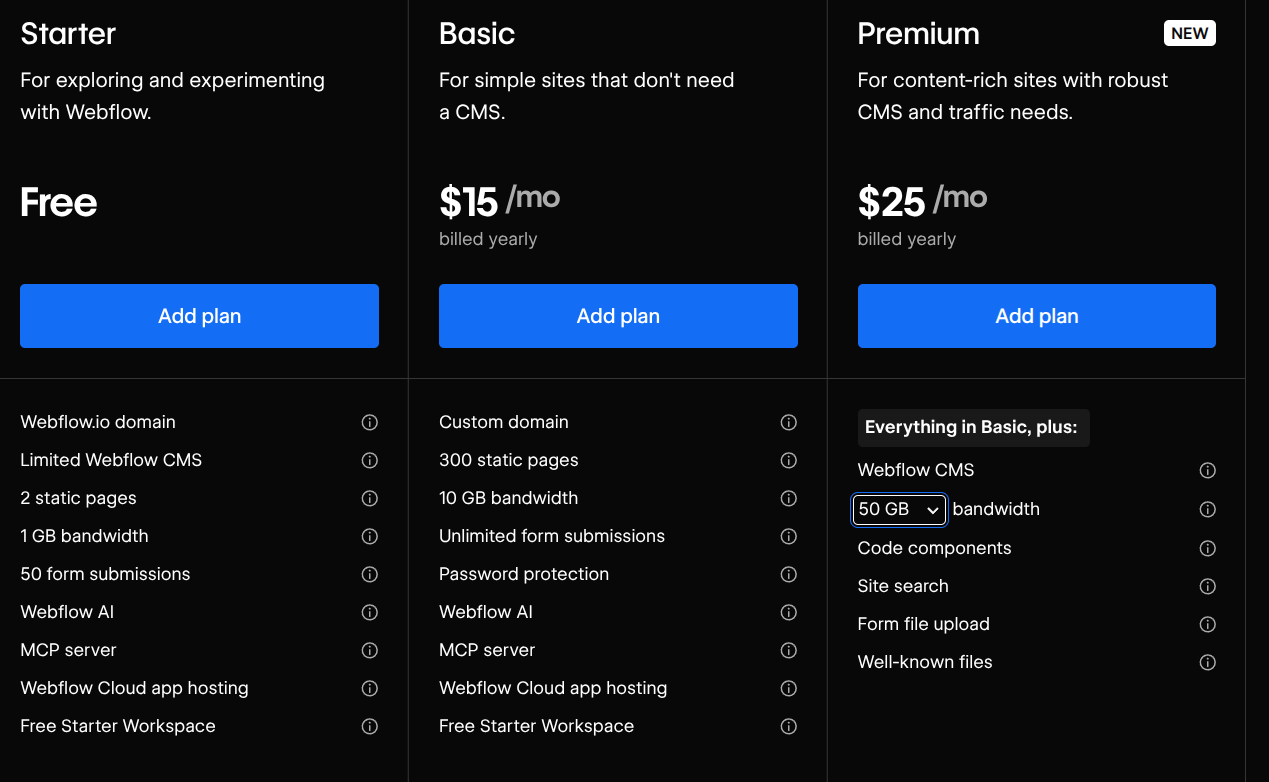
Webflow forms come with plan limits and submission thresholds that will limit your Webflow forms usage. These limits define the form submissions your B2B website can receive and the overall bandwidth your B2B website can use. You should keep these plan limits and submission thresholds in mind, every step of the way, because they can affect your B2B website’s ability to obtain/retain conversions, leads, and purchases.
- Starter (Free): 50 form submissions in total (lifetime/test limit). After 50 form submissions, there is a hard stop. The form will be disabled until you upgrade your Webflow website’s current plan.
- Basic: Unlimited form submissions. Using the “Basic” Webflow plan will give your B2B website unlimited form submissions. But, there is a 10 GB monthly bandwidth limit, which means that you may not have more bandwidth after receiving 1,000 to 5,000 viewers in a month. These bandwidth limits also affect the number of form submissions you can receive.
- Premium: Unlimited form submissions. CMS/Premium comes with unlimited form usage. But, it comes with higher bandwidth limits that can be tailored to your bandwidth needs. The bandwidth starts at 50 GB a month and can go as high as 2.5 TB a month. These limits will allow you to receive more form submissions within a month.
- Enterprise: Unlimited form submissions. Using Webflow’s “Enterprise” plan will give you the features clarified above, as well as custom master service agreements/service level agreements, security compliance, and dedicated limits that align with your enterprise goals.
Before we move onto the next section, here is a Webflow billing challenge to be aware of: exceeding the Webflow form plan limits and submission thresholds can freeze form processing and lead to overage fees added to your monthly rate. If form processing is frozen, you may not retain the leads that came to you. If overage fees are added to your monthly rate, you will need to pay more for that month than you thought you would have to pay.
One of the many frustrating aspects of Webflow’s pricing, unfortunately.
Spam handling in Webflow forms

Webflow forms rely on four methods for spam handling:
- CAPTCHA systems: CAPTCHA systems are authentication systems that ask visitors to identify themselves as a human user before they can submit a form. Webflow forms support CAPTCHA systems through Webflow’s reCAPTCHA field.
- Bot blocking: Bot blocking, in Webflow, uses AI to analyze inputs, mouse movements, and various other signals, in order to separate bots from human visitors. Doing so allows Webflow’s bot blocking system to detect bots and prevent them from making form submissions on any of the forms within your B2B website.
- The honeypot technique: The honeypot technique uses a hidden form field, that human visitors are unable to detect, to detect spam bots. When a bot fills out the hidden form field, the form submission is recognized as spam and, then, discarded.
- Spam filtering: Spam filtering is a Webflow feature that checks all of the form data sent on your B2B website to determine if it is spam. If it is spam, it will be filtered out. Spam filtering, like the honeypot technique, will, when activated, apply to all of the forms on your B2B website.
Every single one of the spam handling methods above can:
- Ensure that your B2B website does not exceed the form submissions and bandwidth limits inherent to the Webflow plan you are subscribed to. These limitations restrict the number of form submissions you are able to receive and, with these spam handling methods, you should only receive legitimate form submissions.
- Prevent bots and spam users from filling out your B2B website’s forms; this can greatly reduce false leads and conversions, ensuring that the forms you do receive will, in most cases, be from people legitimately interested in what you offer.
- Reduce the friction associated with many spam handling methods. Bot blocking, the honeypot technique, and spam filtering are friction-free. Your B2B website’s visitors may not even know that these features are present, allowing their experience to be as pleasant as possible.
Here is one issue to be aware of: Webflow’s reCAPTCHA fields create friction. Customers will need to fill out the reCAPTCHA field, which can be annoying. You may want to employ other methods of spam filtering, as reCAPTCHA fields could reduce the number of conversions, leads, and/or sales you receive.
Integration architecture for Webflow forms
Webflow forms can rely on different integration architectures. Some of these integration architectures are native to Webflow, while others rely on embedding forms into your Webflow website.
Webflow forms native integration architecture and its limitations
Webflow forms rely on an integration architecture that consists of native form blocks built using standard “<form>” elements.
Each one of the “<form>” elements that makes up your Webflow forms can be built with direct Webflow designer styling.
The standard integrations architecture for Webflow forms is quite flexible. But, it lacks advanced file uploading, native multi-step branching, conditional field logic, and inline calculation engines.
If these limitations are unacceptable, due to the needs of your B2B website, you can use an advanced form builder tool that supports those features.
Fillout and Jotform come with calculation engines and multi-page forms, along with a wide variety of other features. The forms built with these form builders can be embedded into your Webflow B2B website with ease.
HubSpot integration architectures
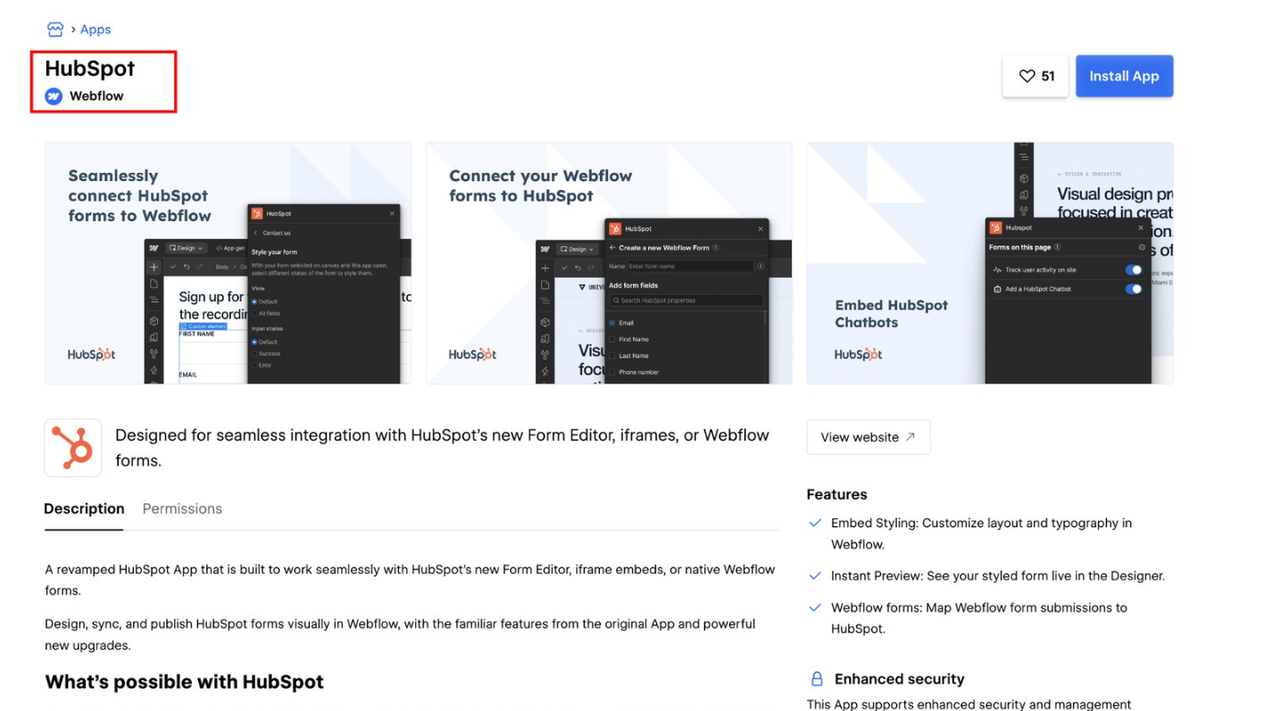
Many B2B websites route form submissions to HubSpot using one of two different integration architectures for HubSpot’s CRM:
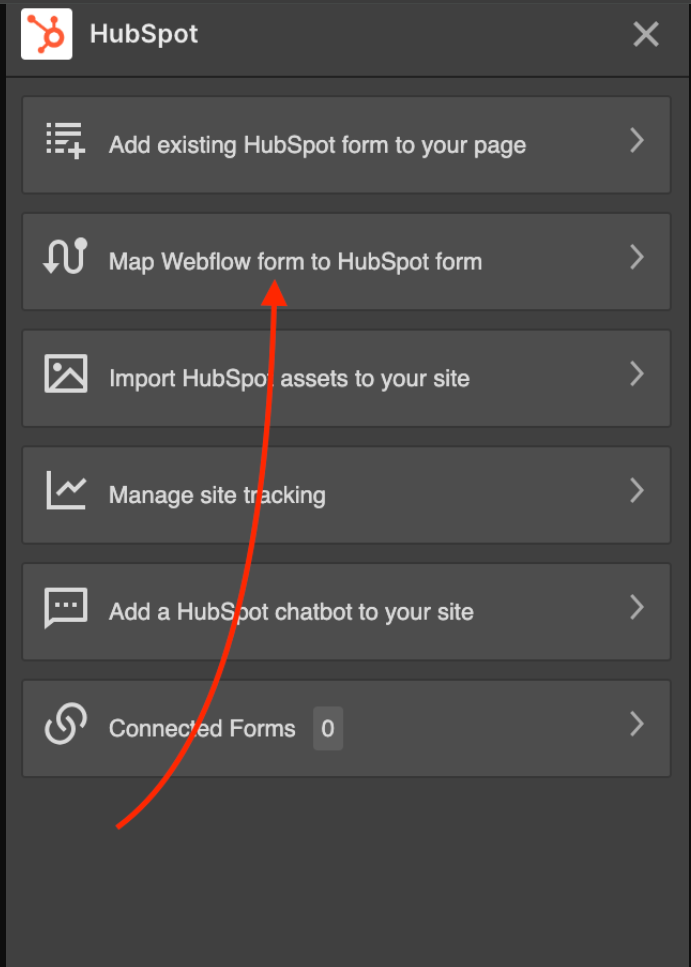
- The official Webflow app for HubSpot: Webflow offers an official HubSpot app. This app uses OAuth to automatically detect and map forms within the Webflow Designer. Form submissions that go through this native Webflow app will be sent from Webflow to HubSpot and, then, to your designated inbox. You can select and drop a HubSpot form directly into your website and style it using HubSpot’s editor function.
- Using native HubSpot embedded form scripts: Many B2B websites rely on native HubSpot embedded form scripts. These scripts send data from a user’s browser directly to HubSpot. This bypasses Webflow’s monthly form limit threshold, as well as the bandwidth limits that come from receiving form submissions through Webflow, which could save your B2B website some money.
Salesforce integration architectures
Outside of HubSpot, many B2B websites route form submissions to Salesforce. But, Salesforce does not come with a direct Webflow connection, which is why many B2B websites rely on the following integration architectures:
- Salesforce Web-to-Case and/or Web-to-Lead: Using a native Webflow form block, you can point the form action to your desired Salesforce endpoint. The data sent from a particular form will go directly to your chosen Salesforce CRM.
- Middleware Salesforce routing: You can post Webflow form webhooks to an API that handles lead assignment, deduplication, and routing directly into Salesforce objects. Using this API allows form submissions to go directly to your Salesforce CRM. Zapier and Workato are two APIs that can do this.
The set-ups most B2B teams get wrong
Many B2B teams rely on Webflow form set-ups that fail to achieve their goals, work poorly, or create further challenges for their team down the road. You can find five of these form set-ups in the sections below.
Set-up 01: Using native Webflow storage for high-volume form submissions
You can use Webflow’s form features to capture form submissions. But, when form submissions hit Webflow, they will consume your B2B website’s monthly bandwidth and overall form limits. This can become expensive and cumbersome, especially if you receive a high volume of form submissions.
To bypass this, you can post forms directly to an external endpoint using the “Custom Action URL” feature. Or, you can use embedded forms, such as native Salesforce/HubSpot forms that have been styled with CSS. Both of these features can reduce your B2B website’s monthly bandwidth usage and its overall form submissions.
Set-up 02: Syncing unsanitized leads to your Salesforce CRM
You can set up forms that rely on Salesforce Web-to-Lead to send form submissions directly to your Salesforce CRM. As useful as this is, it comes with one major issue: leads sent through Salesforce Web-to-Lead will be unsanitized. This means it may be a bot, spam, or invalid; among other possibilities.
To protect your B2B website’s form submissions and, in doing so, only receive sanitized leads that align with your B2B goals, you can route Webflow leads through middleware that handles lead assignment, deduplication, and Salesforce routing. Zapier and Workato are, as mentioned earlier, popular middleware APIs that can handle this.
Set-up 03: Activating the “Collect data from non-HubSpot forms” function
Your B2B website may be running the official Webflow HubSpot app while also running HubSpot’s global non-HubSpot form collector. When both of these applications are running, it causes duplicate contact creation, double email triggers, and corrupted lifecycle stages.
To prevent this, go to “HubSpot Settings.” Then, you need to go into “Marketing,” click “Forms,” and click the “non-HubSpot forms.” Turn off “Collect data from non-HubSpot forms.” Doing so will prevent the issues associated with both HubSpot apps running at the same time.
Set-up 04: Disconnecting HTML “<label>” tags from field “Name” attributes
Your Webflow forms rely on hidden “Name” attributes that are attached to each input field to route data correctly. If a Webflow field’s internal name does not match your CRM’s internal API property name exactly, your CRM might reject the data or dump it into custom unmapped properties that you will be unable to find. Both can lead to you losing potential leads and/or conversions.
To ensure that the leads/conversions you receive go to your chosen CRM inbox, you must update the field settings inside Webflow to match your CRM’s specific API name. Here is one example: if your HubSpot CRM uses “firstname” as its internal API name, and Webflow’s corresponding field is titled “Field 2,” you must open the field settings in Webflow and change the corresponding “Name” field from “Field 2” to “firstname.”
Set-up 05: Forgetting to implement “GCLID/UTM” parameter passing
Your B2B website’s Webflow forms can rely on basic client-side forms without any hidden tracking fields. But, doing so is unwise, for the following reason: your attribution data may be broken and you may not be able to see where leads are coming from. Both of these can hinder your lead-generation, conversion, and sales efforts.
To prevent those two issues, you need to ensure that hidden inputs, such as “utm_source” and “utm_medium,” are included within every Webflow form. You also need to make sure that a simple script runs on page load to parse URL parameters and populate those values, into the form payload, before it is submitted.
Webflow forms and Path To Flow’s app directory
Every B2B website that relies on Webflow will, in one way or another, need to rely on some of Webflow’s form features
You can use the information clarified above to tailor your Webflow forms to the B2B goals you wish to achieve.
If you want to set up Webflow forms that work with different CRMs, you can click here to visit Path To Flow’s Webflow app directory. We have several apps specifically for Webflow forms.

