

Is Webflow good for ecommerce? The short answer
Webflow is good for ecommerce stores that require absolute freedom over their visual layout, branding, and visual appearance, all without requiring the use of complex code. But, Webflow is not ideal for multi-channel brands, high-volume stores, or stores that require global tax management straight out of the box.
You can find a decision matrix in the space below. A more elaborate version of this decision matrix can be found in the “Webflow vs Shopify: a decision framework” section of this overview.
- Choose Webflow alone if: You have a small catalog with 1 to 50 items. Custom design is your main priority. You want a content site with a store attached to it.
- Choose Webflow + App if: You have 50 to 100 items in your product catalog. You want the freedom of Webflow’s design paired with custom Shopify backend power. You want a store and a content site, and don’t mind using third-party apps to set it up.
- Choose Shopify if: You have 50+ items in your catalog. Building a store is your main priority and your store’s visual design is not a major priority. You require advanced ecommerce, sales, and tax tools for your ecommerce store, and have minor content needs.
Webflow Ecommerce plans and pricing
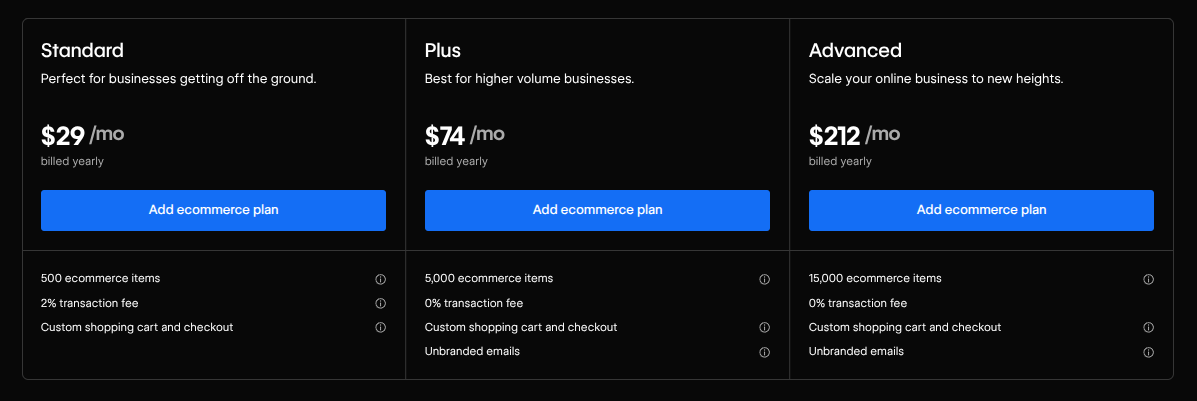
Webflow Ecommerce plans come with their own unique features, when compared with other Webflow plans, as well as their own distinct pricing arrangements. You can click here for Path To Flow’s Webflow pricing overview.
If you look at the table below, you will see two things: the three Webflow Ecommerce pricing plans available to Webflow Ecommerce buyers and how their features relate to Webflow Premium’s features.
- Monthly price as per annual billing: Webflow Standard: $29 per month; Webflow Plus: $74 per month; Webflow Advanced: $212 per month; Webflow Premium, for reference: $25 per month.
- Item/Product limit: Webflow Standard: 500 ecommerce items; Webflow Plus: 5000 ecommerce items; Webflow Advanced: 15,000 ecommerce items; Webflow Premium, for reference: 20,000 non-ecommerce CMS items.
- Platform transaction fees: Webflow Standard: 2% transaction fee; Webflow Plus: 0% transaction fee; Webflow Advanced: 0% transaction fee; Webflow Premium, for reference: N/A.
- Staff accounts: Webflow Standard: 3 staff accounts; Webflow Plus: 10 staff accounts; Webflow Advanced: 15 staff accounts; Webflow Premium, for reference: Standard Workspace Webflow Seat limits.
- CMS limits & page limits: Webflow Standard: 2,000 CMS items and 150 static site pages; Webflow Plus: Up to 10,000 CMS items and 300 static site pages; Webflow Advanced: Up to 10,000 CMS items and 300 static site pages; Webflow Premium, for reference: 20,000 CMS items and standard Webflow page limits.
What Webflow Ecommerce handles well
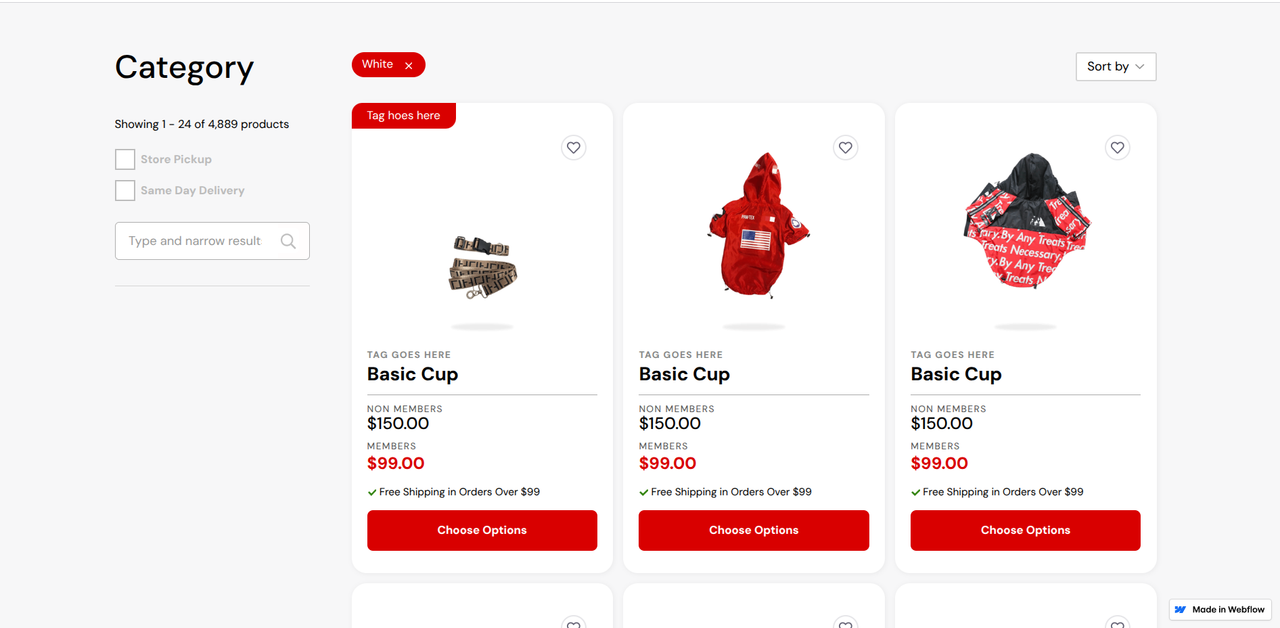
Webflow Ecommerce handles the following very well:
Design control over product pages
Webflow Ecommerce lets you:
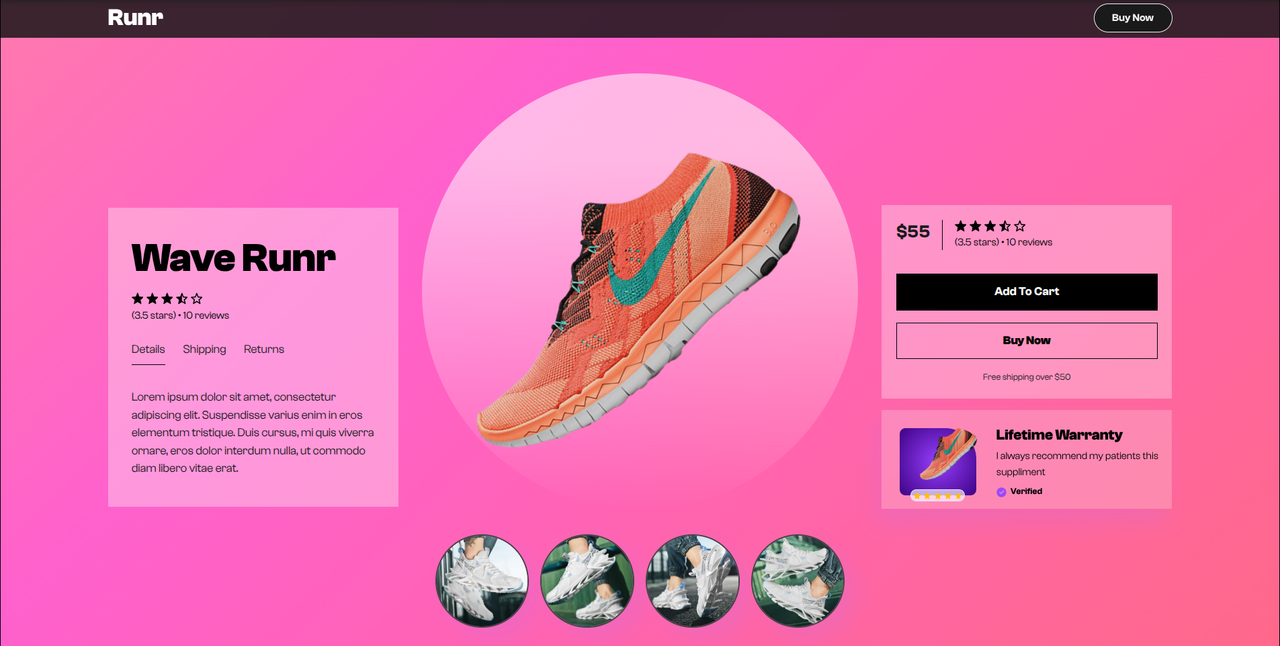
- Create product layouts from scratch. You can do so with CSS Grid or Flexbox and do not have to place your products into a generic store template.
- Add all sorts of different custom CMS fields to any product page. Such as story sections, badges, and size guides; along with many others.
- Insert a wide variety of different animations/interactions into your product pages. Including micro-interactions and scroll animations.
Cart and checkout styling
Webflow Ecommerce lets you:
- Style every visual state of your ecommerce store’s shopping cart, so that it matches your overall brand identity.
- Integrate native support for a multitude of different payment platforms. PayPal, Stripe, Apple Pay, and Google Pay are some of these platforms.
- Customize your cart with all sorts of animations, widgets, and Webflow Ecommerce templates. Cart sliding animations and preview counts are just two examples.
CMS-driven catalogs
Webflow Ecommerce lets you:
- Manage product descriptions, inventory, categories, and pricing inside Webflow’s comprehensive CMS collections.
- Link the products your ecommerce store offers to blog posts, project portfolios, and/or lookbooks; along with other types of content.
- Update product pages individually. Or, with CSV bulk imports, which allows you to update multiple product pages all at the same time, using a linked page template.
Blending content with commerce
Webflow Ecommerce lets you:
- Place videos, long-form written content, and product breakdowns right into product pages and category pages.
- Insert customer reviews, blog posts, and editorial pages right next to your products. Without the need for clunky plug-in solutions.
- Tailor your ecommerce store, product, and content layouts so that they display your chosen content and products in a way that aligns with your content/brand goals.
You can click here to learn about the best CMS for SEO. This information is useful for Webflow Ecommerce stores, as well as ecommerce stores of all sorts.
Payments, tax and shipping
Webflow supports a number of payment providers, tax features, and shipping arrangements.
Supported payment providers
Webflow supports the following payment providers:
- Stripe.
- PayPal.
Stripe integration allows your ecommerce store to accept standard credit cards/debit cards. On top of that, Stripe integration lets your ecommerce store natively accept web wallets like Microsoft Pay, Apple Pay, and Google Pay.
PayPal integration allows your ecommerce store to pay using their PayPal account, as well as Venmo and/or PayPal Pay Later.
If you require alternative payment gateways and/or region-specific payment processors, Webflow’s native checkout will be inadequate. You will need a third-party hosted cart, some of which can be found in Webflow’s app store.
Automatic tax calculation
Here is how automatic tax calculation works in Webflow Ecommerce:
- Sales tax and VAT calculations are automatically provided at checkout, through Webflow’s native partnership with TaxJar.
- Automatic sales tax and VAT calculations are only available to customers in the United States, Canada, the European Union, and Australia.
- You can set individual “Tax Classes” that mark specific items as completely tax-exempt or subject to standard taxes, among other possibilities.
If you sell to customers in places like the United Kingdom, Japan, and Norway - among many other possibilities - Webflow cannot calculate taxes automatically.
You will need to manually write flat tax rules for the places you sell to. Or, you will need to use a third-party app as an external checkout API layer, to ensure that your store abides regional tax laws.
Shipping zones and digital delivery
This is what Webflow Ecommerce offers when it comes to shipping zones:
- You can use Webflow’s built-in static shipping engine to create “Shipping Zones” that are grouped by continent, country, and/or specific regions/states.
- You can go into these “Shipping Zones” and build rules that encompass flat rates, percentage of total order cost, price-based tiers, and weight-based/quantity-based rules.
Webflow does not offer native live carrier rate calculation. This means that, if you want live carrier rate calculation within your Webflow store, you will need to use a third-party app.
Outside of shipping zones, Webflow Ecommerce offers the following features for digital delivery:
- Carts can hold digital and physical items. You do not need to set up a custom cart for the digital goods you offer.
- You can turn off Webflow’s “Requires shipping” switch for digital-only goods. Doing so will prevent physical shipping information from being required.
- When a customer checks out digital goods it will hide their shipping address and process taxes purely based on the customer’s billing address.
Webflow handles the digital delivery checkout logic. But, when it comes to secure file delivery, Webflow can be lacking. Ecommerce stores that sell digital goods may want to connect their ecommerce store to a secure file delivery system so that their digital goods can be delivered safely.
Where Webflow Ecommerce breaks
Webflow Ecommerce offers a variety of great features for ecommerce stores of all sorts. Even so, though, Webflow Ecommerce does offer certain limitations. These limitations could break your ecommerce store.
Here are the primary limits of Webflow Ecommerce and what these limits mean for you:
- Checkout customization limits: You can reorder basic checkout fields and style various checkout components. But, you cannot alter the deeper transactional logic that underlies Webflow’s ecommerce checkout. This means that custom fields and advanced conditional logic are blocked. A separate app is required.
- Subscription limits: Webflow Ecommerce does not support native, recurring subscriptions. They used to with their “User Accounts” framework, but Webflow no longer offers this framework. If you would like to sell these things through your Webflow Ecommerce store, you will need to use an app.
- Customer account limits: Your customers cannot create a store profile within your ecommerce store. This can prevent them from managing their past purchases, saving addresses, or viewing their prior order history.
- Catalog size limits: Webflow’s highest ecommerce tier caps the number of ecommerce items you can sell, through your store, at 15,000. Complex variations on just one product can consume many of those item allocations, which means your overall ecommerce store capacity may be limited.
- Multi-currency limits: Webflow Ecommerce relies on just one currency. Because it is a single-currency system, international customers will need to calculate the conversion manually. If you want to make it easier for those customers, you will need to use an app.
- Webflow’s smaller app ecosystem limits: Shopify comes with a massive library filled with thousands of different ecommerce apps. Webflow’s app ecosystem encompasses 100+ apps which, while significant, is far less than what Shopify offers. On top of that, core commerce infrastructure, such as advanced inventory tracking and complex dynamic shipping calculators, will require manual integrations.
Here are the workarounds for those limits and the costs associated with each of these workarounds:
- You can replace native checkout with a modular checkout platform like “Foxy.” You can embed Foxy into your Webflow template. Up to 100 transactions per month will cost $30 a month and up to 500 transactions a month will cost $65 a month.
- You can use an integrated subscription tool that has been tailored to Webflow’s ecommerce system. One of these tools is “Monto Simple Subscriptions.” A subscription typically starts at around $29 to $49 a month, depending on your ecommerce store’s volume.
- You can use a tool like “Memberstack” to incorporate customer accounts. Or, you can use the customer portal provided by “Foxy.” Memberstack starts at $29 a month and Foxy will cost $30 a month for up to 100 transactions a month and $65 a month for up to 500 transactions a month.
- You can move your product inventory outside of Webflow’s native backend and place this product inventory into a headless commerce engine like “Swell.” A subscription to Swell’s commerce engine begins at $29 per month.
- You can add a geolocation converter, such as “Monto Multi-Currency,” into your Webflow Ecommerce store. Monto Multi-Currency will display converted international rates based on a customer’s location and can route customers to alternative checkout processors. A subscription usually costs $19 a month.
- You can build custom ecommerce logic using “Make” or “Zapier.” Or, you can hire a web development agency for custom Webflow Ecommerce solutions. Make and Zapier plans will, in most cases, cost anywhere from $20 to $100 a month, depending on data synchronization frequencies and automated task runs.
If you go on Reddit and look at Webflow Ecommerce sentiment, you’ll notice that most users say the following: Webflow Ecommerce offers flexible hybrid capabilities when paired with third-party apps but Webflow Ecommerce is not ideal for heavy commercial needs that require a robust ecommerce platform.
Before you enable ecommerce: the irreversible switch
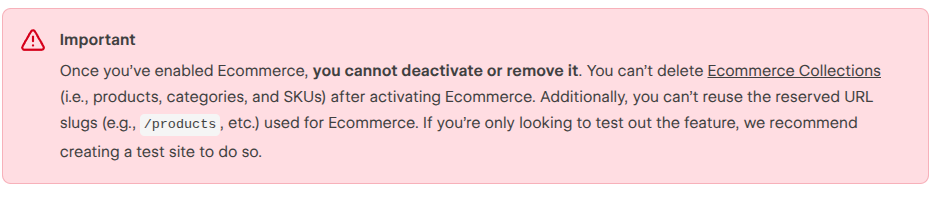
Before you enable Webflow Ecommerce, here is something to keep in mind: you cannot disable Webflow Ecommerce. Once it has been enabled, within a project, it will always be a part of that project.
On top of that, the core ecommerce collections created, for a particular project, cannot be deleted. Even if you delete all of your products, these core ecommerce collections will remain. Plus, your Webflow Designer interface, for that project, will always feature Webflow Ecommerce settings and panels.
You should always test Webflow Ecommerce on a separate, and free, duplicate site before enabling it on your production Webflow website. Enabling it will change that website for the remainder of its lifetime.
Extending Webflow with commerce apps
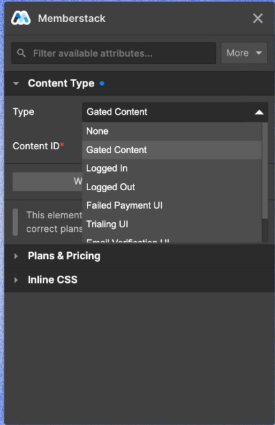
You can extend Webflow Ecommerce with various commerce apps that connect Shopify, Stripe, and/or other backends to a Webflow front end. Here are three of the most notable commerce apps of this sort:
- Memberstack: Using Memberstack lets you build membership sites and custom SaaS products, both of which can be restricted through a gated access mechanism that is backed by Stripe payments in Webflow.
- Foxy: Foxy provides flexible product configurations and custom carts, as well as complete control over your Webflow Ecommerce’s store checkout process design.
- Stripe App: Webflow’s Stripe App lets you integrate Stripe directly into your Webflow Ecommerce store and embed payment links, manage products, and handle checkout flows without any custom code.
Even though this hybrid route can be very beneficial, it does come with some trade-offs. Here are the trade-offs associated with this hybrid route:
- Cost: You will need to pay for Webflow’s associated plans as well as subscriptions to the various commerce apps you wish to integrate into your Webflow Ecommerce store. This can add up very quickly and may affect the profitability of your Webflow Ecommerce store.
- Data synchronization: Your Webflow Ecommerce store’s prices, stock levels, and products will need to synchronize between multiple apps. Delays or glitches can lead to customers buying out-of-stock items; among a wide variety of other issues.
- Checkout location: Your customers may need to checkout on a separate domain. This can hurt conversion rates or confuse some of your customers. You can make things easier for your customers by styling that separate domain so that it matches your main Webflow Ecommerce store.
- Setup complexity: You may need to setup, and manage, at least two different dashboards. Setup can be complicated and management can be rather tedious. On top of that, you will need to make sure these dashboards are in alignment. If they aren’t, your store might display incorrect information.
You can click here to learn more about custom code in Webflow, especially for script-based setups.
Webflow vs Shopify: a decision framework
Webflow Ecommerce offers many great features. But, so does Shopify. Choosing which ecommerce platform to use can be difficult, but using the decision matrix seen below may help you make the right choice:
- Store type: Choose Webflow alone if: Your store features digital goods, boutique physical goods, and/or single-product landing pages; Choose Webflow + App if: Your store features cross-border boutique retail, memberships, and course platforms; among other possibilities; Choose Shopify if: You run a high-volume retail store, a complex B2B store, and/or at least one multi-location brick-and-mortar store.
- Catalog size: Choose Webflow alone if: You have a small catalog that is around 50 products, or so; Choose Webflow + App if: You have a medium catalog that is around 50 to 500 products. Apps can bypass Webflow’s native limits; Choose Shopify if: You have a very large to unlimited store catalog. A Shopify store can hold 500 items to 100,000+ items; and even more than that.
- Subscription needs: Choose Webflow alone if: You want to keep subscriptions to a minimum; Choose Webflow + App if: You don’t mind having to deal with multiple subscriptions. Many apps rely on tiered access, custom billing cycles, and gated features; Choose Shopify if: You intend to obtain an advanced enterprise subscription with advanced retention tools and complex recurring product boxes; among other features.
- Content needs: Choose Webflow alone if: You have high content needs and need deep CMS integration, as well as custom layouts for blogs and case studies; among other things; Choose Webflow + App if: You have high content needs. You will need to blend your Webflow visual designs with specialized functional apps; Choose Shopify if: You have low to moderate content needs. You can use standard blog templates, but will need to rely heavily on third-party builders.
- Team skills: Choose Webflow alone if: You run a designer-led team. Webflow Ecommerce requires minimal coding but requires UI/UX specialists and visual developers; Choose Webflow + App if: You run a designer and marketer-led team. The two roles will need to be comfortable connecting Webflow to third-party tools and APIs; Choose Shopify if: You run an operator-led team. Web administrators, ecommerce managers, and inventory planners should be operating a Shopify ecommerce store.
- Inventory & shipping: Choose Webflow alone if: You have simple inventory and shipping needs. Webflow Ecommerce allows for flat rate shipping and basic tax calculation; Choose Webflow + App if: You need a customized checkout logic, which must be handled with a third-party app; Choose Shopify if: You have complex inventory and shipping needs. Shopify offers advanced point-of-service features, real-time carrier rates, and multi-warehouse routing.
Webflow vs. Shopify ecommerce can be difficult to assess. Using the decision matrix above will help you make the right choice.
If you need help setting up your Webflow Ecommerce store, you can visit Path To Flow’s agency directory. A wealth of different Webflow agencies are ready to help you set up your new Webflow Ecommerce store.

